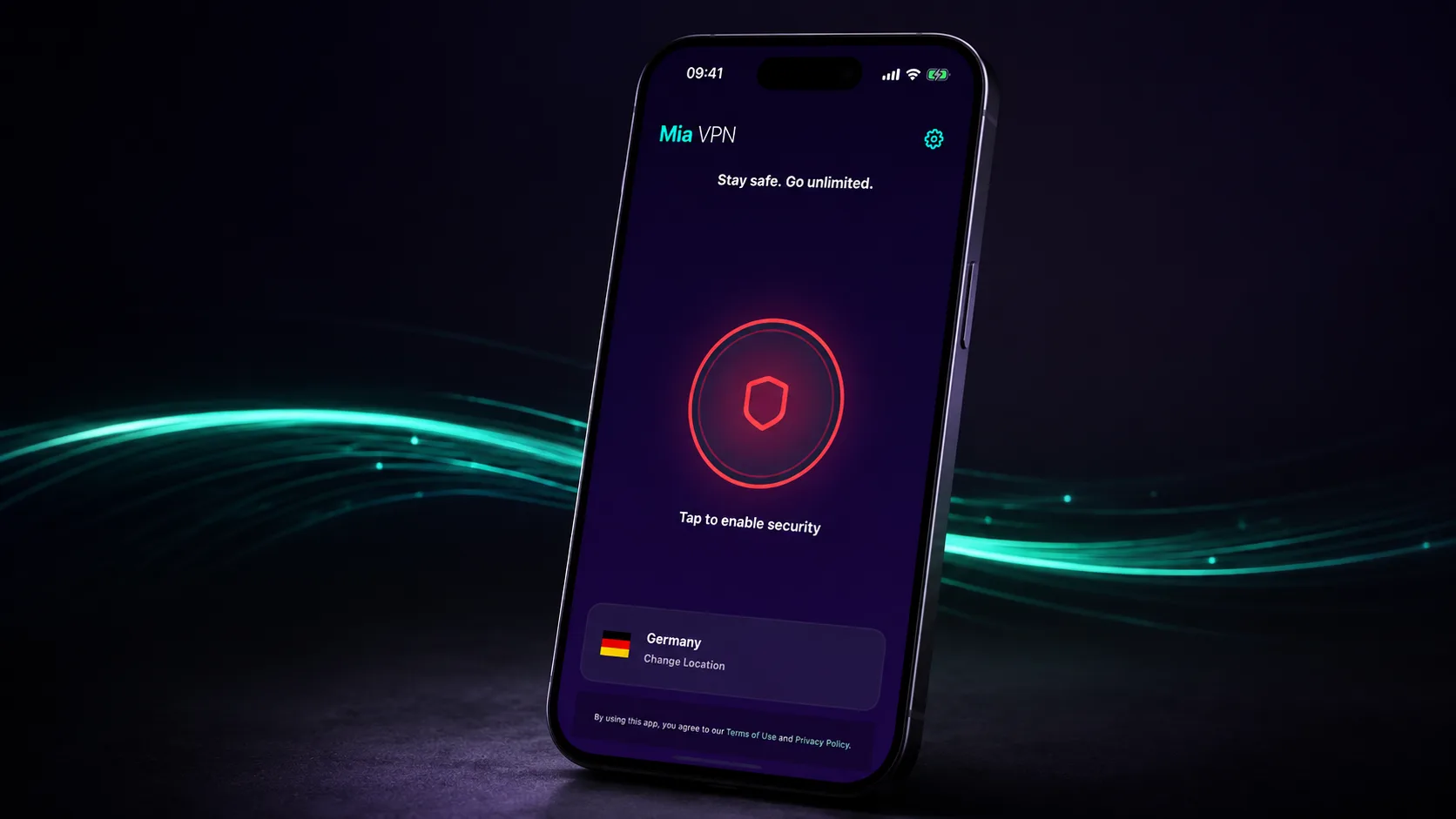
An iPhone VPN encrypts covered traffic between the phone and a VPN server and changes the public IP seen by websites. That is useful on networks you do not control, but it does not override GPS, prevent every app from collecting data, or hide activity after you sign in.
When an iPhone VPN helps
- Public Wi-Fi: it reduces what a local network can inspect between the phone and VPN server.
- IP-based tracking: destinations normally see the VPN server’s public IP.
- Network restrictions: a VPN may provide a different route, although availability is never guaranteed.
- Consistent protection: device-wide VPN configuration can cover more traffic than a browser-only proxy.
What it cannot do
- Hide your identity from an app or website where you sign in.
- Remove cookies, advertising identifiers, or browser fingerprints automatically.
- Change GPS location or data you share through permissions.
- Make phishing links, malicious profiles, or unsafe downloads harmless.
- Replace iOS updates, strong passcodes, or multifactor authentication.
Install Mia VPN safely
- Use the official Mia VPN for iPhone page to open the App Store listing.
- Confirm the developer is Mobinova. The iPhone app requires iOS 15.6 or later. Check the App Store for current compatibility.
- Review the App Store privacy disclosure, in-app purchase information, and permissions.
- Open Mia VPN and allow the iOS VPN-configuration request if you want to connect.
- Compare your public IP address before and after connecting.
Choose an iPhone VPN responsibly
Read the privacy policy for browsing-history rules, diagnostic data, advertising, retention, and subprocessors. Prefer maintained protocols, a clear update history, reachable support, and honest limits. Be skeptical of promises of “complete anonymity” or claims that one feature blocks every kind of tracking.

